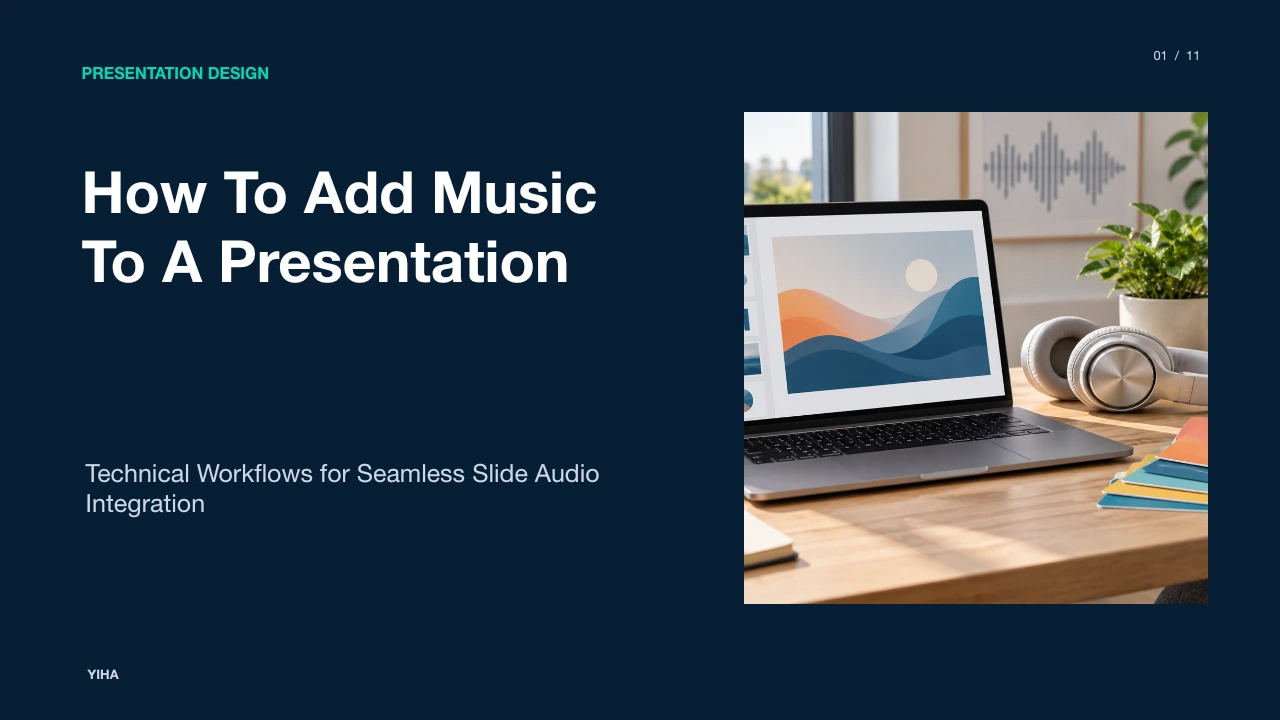
How To Add Music To A Presentation
A technical guide to embedding audio in presentations. Learn how to configure continuous playback across slides, balance volume, sync slide timings, and manage music licensing.
Free download · 4.9 MB11 editable slides · PowerPoint format
Download the editable PPTX
PPTX · 4.9 MB · 11 editable slides · Free to edit and reuse with attribution to Yiha.ai
View every slide
Use ← →, Home/End, or swipe on mobile
Integrating music into a presentation transforms static slides into an engaging narrative experience. When used thoughtfully, audio clarifies pacing, underscores thematic transitions, and maintains viewer interest. However, improper configuration can distract audiences through abrupt volume spikes, broken audio links, or technical playback failures. This guide outlines the technical procedures for selecting formats, configuring background playback, trimming audio, balancing loudness, and respecting copyright rules across modern presentation tools.
The Communicative Role of Music in Presentations
Audio in presentations acts as a functional communication channel rather than mere decorative sound. When paired with visual cues, background music helps establish tone, signals narrative shifts, and anchors audience attention. According to How to Create a Photo Slideshow with Music in PowerPoint, music brings collections of images to life by telling a story and evoking emotion instead of merely displaying pictures sequentially.
Presenters must account for cognitive processing limits when integrating audio. Spoken words and musical tracks share acoustic bandwidth. When background tracks contain prominent lyrical vocals or abrupt tonal shifts, they force listeners to divide attention between interpreting the speaker's voice and filtering out musical content. Analysis indicates that ambient, instrumental soundbeds avoid this competition by reinforcing mood without competing for semantic focus. An illustrative example is an introductory company retrospective where subtle instrumental music plays softly behind key project milestones, allowing the speaker to deliver context without vocal interference.
Audio File Formats and Codec Compatibility
Presentation applications run on varied operating systems and web engines, making file format selection vital for reliable playback. Cross-platform environments handle container formats and audio codecs differently, which can cause silent failures if an unsupported file is introduced. As highlighted in How to Add Sound Effects to PowerPoint (Step-By-Step), standard compressed formats such as MP3 or uncompressed WAV containers are widely recommended to ensure broader compatibility and prevent unexpected playback failures during live delivery.
For multimedia integration involving video clips with bundled audio, standard MP4 files utilizing the H.264 video codec and AAC audio codec represent the most reliable baseline, as detailed in How to Add Video Clips in PowerPoint Presentation: Enhance Your Slides. While legacy formats like WMV or AVI may operate in select Windows installations, they frequently encounter decoding issues on macOS, iOS, or browser-based slide engines. Using MP3 or AAC streams compressed at standard sample rates prevents hardware decoding latency and ensures consistent playback across different devices.
Inserting Audio Files into Slide Canvases
Adding an audio track begins with placing the media file onto the presentation canvas. In desktop applications, the presenter navigates to the primary ribbon, selects the Insert tab, clicks Audio, and chooses between local computer storage or linked cloud drives. Following the workflow documented in How to Create a Photo Slideshow with Music in PowerPoint, selecting the first slide before inserting the audio file ensures the track initializes at the very start of the deck.
Once imported, presentation platforms display a speaker icon directly on the slide surface. Presenters can keep the media fully embedded inside the presentation package or externally referenced. Embedding packages the audio data directly within the slide document file, ensuring portability when moving files between workstations. External linking keeps presentation file sizes lower but introduces serious vulnerabilities: moving, renaming, or breaking the relative folder path of the source audio file will silence the presentation. For high-stakes delivery, embedding the file directly is the standard practice.
Configuring Continuous Playback Across Slides
By default, presentation engines stop audio playback as soon as the presenter advances to the next slide. Transforming a local audio clip into a continuous background soundtrack requires adjusting properties within the contextual playback menu. As explained in How to Create a Photo Slideshow with Music in PowerPoint, selecting the inserted speaker icon reveals the Playback tab, where checking the "Play Across Slides" option instructs the software not to stop the music during slide transitions.
To ensure uninterrupted continuity throughout an extended talk, presenters should also enable the "Loop until Stopped" option. If the presentation runtime exceeds the length of the audio file, looping causes the track to seamlessly repeat from the beginning rather than cutting out abruptly. Presenters can automate playback by setting the start trigger to execute automatically upon slide entry. Finally, dragging the speaker icon off the visible slide canvas or checking "Hide During Show" prevents media player graphics from cluttering audience-facing visuals.
In-App Audio Trimming, Fading, and Bookmarks
Raw audio recordings frequently feature dead air, awkward introductions, or trailing silence that disrupt presentation pacing. Most presentation platforms incorporate native non-destructive editing tools to clean up audio clips directly on the timeline. Guidance from How to Add Audio or Music to Canva (Easy Guide) notes that editors allow users to drag timeline trim handles to shorten tracks and select specific musical sections to fit exact scene durations.
Trimming redundant sections from source files before insertion also reduces project bloat, mirroring the media optimization strategies outlined in How to Add Video Clips in PowerPoint Presentation: Enhance Your Slides. In presentation software, applying entry and exit fade envelopes softens track borders, preventing abrupt bursts of sound when a slide appears and allowing audio to taper smoothly as a section concludes. Presenters can coordinate visual animations with key musical changes by timing slide elements to follow the edited audio track, ensuring that visual reveals coincide with natural transitions in the soundtrack.
Synchronizing Music with Slide Timings and Pacing
Synchronizing visual changes with musical tempo creates a polished, broadcast-style narrative. Presenters often struggle to align slides when advancing decks manually while background music runs independently. A structured solution detailed in How to Create a Photo Slideshow with Music in PowerPoint utilizes the built-in Rehearse Timings tool, which launches the deck full-screen with an active recording timer so authors can click through slides in real time to the music.
During rehearsal, the presenter advances each slide on key musical phrases, rhythmic cadences, or spoken cues. When the sequence finishes, the software prompts the author to save the captured durations. This records custom display intervals for every individual slide rather than applying an arbitrary, uniform transition speed across the entire deck. The result is an automated presentation where slide transitions hit precise visual targets in harmony with the underlying soundtrack.
Loudness Balancing and Voiceover Ducking
Improper volume balance is among the most frequent execution mistakes in multimedia presentations. Uncalibrated background music easily masks vocal frequencies, causing the speaker or recorded voiceover to become illegible. As advised in How to Add Audio or Music to Canva (Easy Guide), creators should use the volume control to keep background music low enough so that speech and spoken voiceovers remain distinctly audible and clear. Workflow guidance in How to Add Music to Your Canva Presentation: A Step-by-Step Guide similarly warns against leaving music at full volume when spoken audio is present, recommending that presenters significantly attenuate musical tracks to preserve voice clarity.
This engineering practice reflects the acoustic concept of ducking, where the amplitude of secondary audio channels is suppressed beneath the dominant speech envelope. When background music competes with spoken frequencies, audience fatigue increases rapidly. If a presentation platform lacks automated ducking controls, presenters must manually calibrate the gain slider on the soundtrack object to a low baseline before rehearsals begin. Testing audio levels across actual venue speakers or standard headphones reveals whether vocal consonants remain articulate throughout musical passages.
Copyright, Licensing, and Distribution Rights
Using recorded music in presentations carries legal obligations that vary according to presentation context, venue, and broadcast reach. Many presenters mistakenly assume that standard personal streaming licenses permit public presentation use. However, as noted in How to Add Music to Canva for Dynamic Projects, music streamed from services like Spotify or Apple Music is licensed strictly for personal listening, and using such tracks in slide decks or video projects violates copyright protections.
Presenters must evaluate whether their project complies with licensing terms or qualifies under copyright exceptions. According to the U.S. Copyright Office Fair Use Index, fair use is determined through four statutory factors under Section 107: the purpose and character of the use, the nature of the copyrighted work, the amount and substantiality of the portion taken, and the effect of the use upon the potential market. Nonprofit educational and transformative uses are more likely to qualify, but no fixed percentage exists. To prevent infringement or automated takedowns on shared platforms, presenters should rely on royalty-free libraries, explicit Creative Commons permissions, or custom audio assets.
File Compression, Portability, and Video Export
Embedding multiple high-resolution audio files can bloat presentation file sizes, causing slow load times, hardware strain, and email delivery failures. Optimizing slide media balances clarity against file footprint. As noted in How to Add Video Clips in PowerPoint Presentation: Enhance Your Slides, built-in compression features allow presenters to compress media objects across quality tiers to shrink presentation file sizes without introducing perceptible acoustic artifacts.
When distributing slide decks to external stakeholders or mobile viewers who do not run dedicated slide software, exporting the presentation into an integrated video container guarantees synchronized audio playback. According to How to Create a Photo Slideshow with Music in PowerPoint, exporting the presentation as an MP4 video ensures maximum compatibility, allowing anyone to view the synchronized deck on phones, computers, or video platforms without missing embedded audio codecs.
Research sources
- PowerPoint add-ins - Office Add-ins | Microsoft Learn · learn.microsoft.com
- How to Add Video Clips in PowerPoint Presentation: Enhance Your Slides | ReelMind · reelmind.ai
- How to Create a Photo Slideshow with Music in PowerPoint · www.thebricks.com
- How to Add Sound Effects to PowerPoint (Step-By-Step) · www.wps.com
- How to Add Audio or Music to Canva (Easy Guide) - PresentationSkills.me · www.presentationskills.me
- How to Add Music to Your Canva Presentation: A Step-by-Step Guide - MagicSlides App · www.magicslides.app
- U.S. Copyright Office Fair Use Index · www.copyright.gov
- How to Add Music to Canva for Dynamic Projects · www.designyourway.net