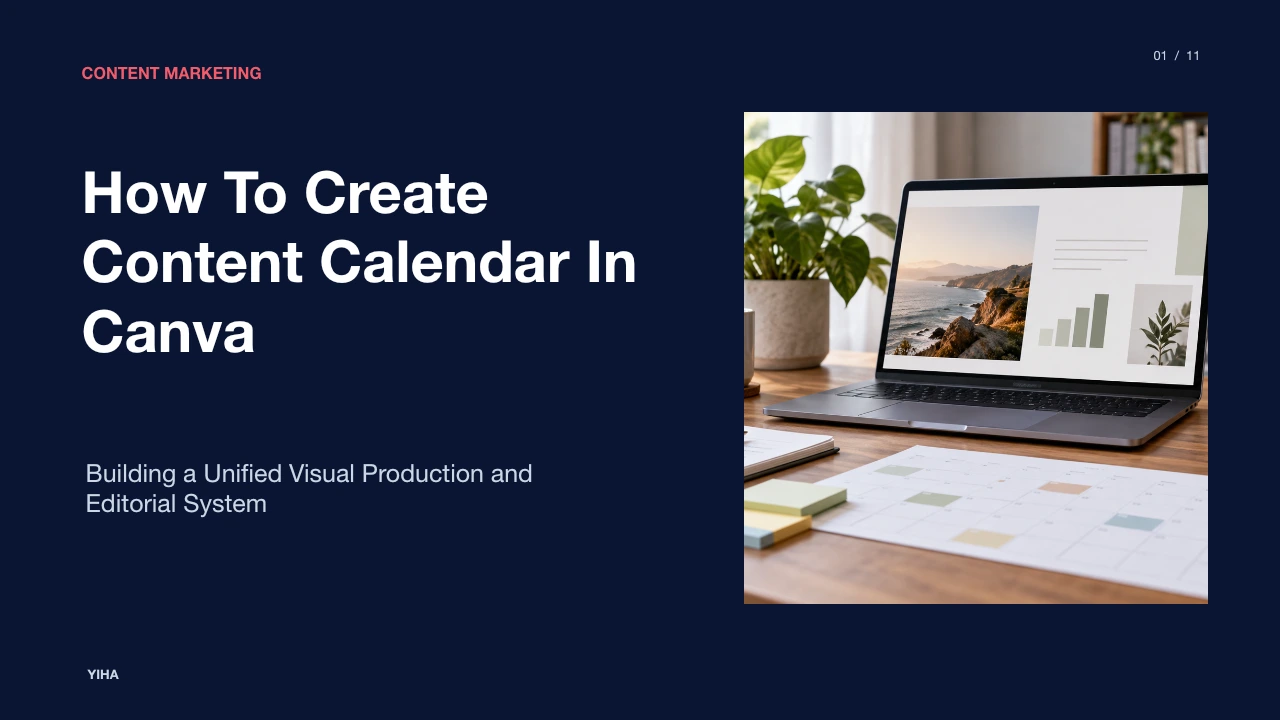
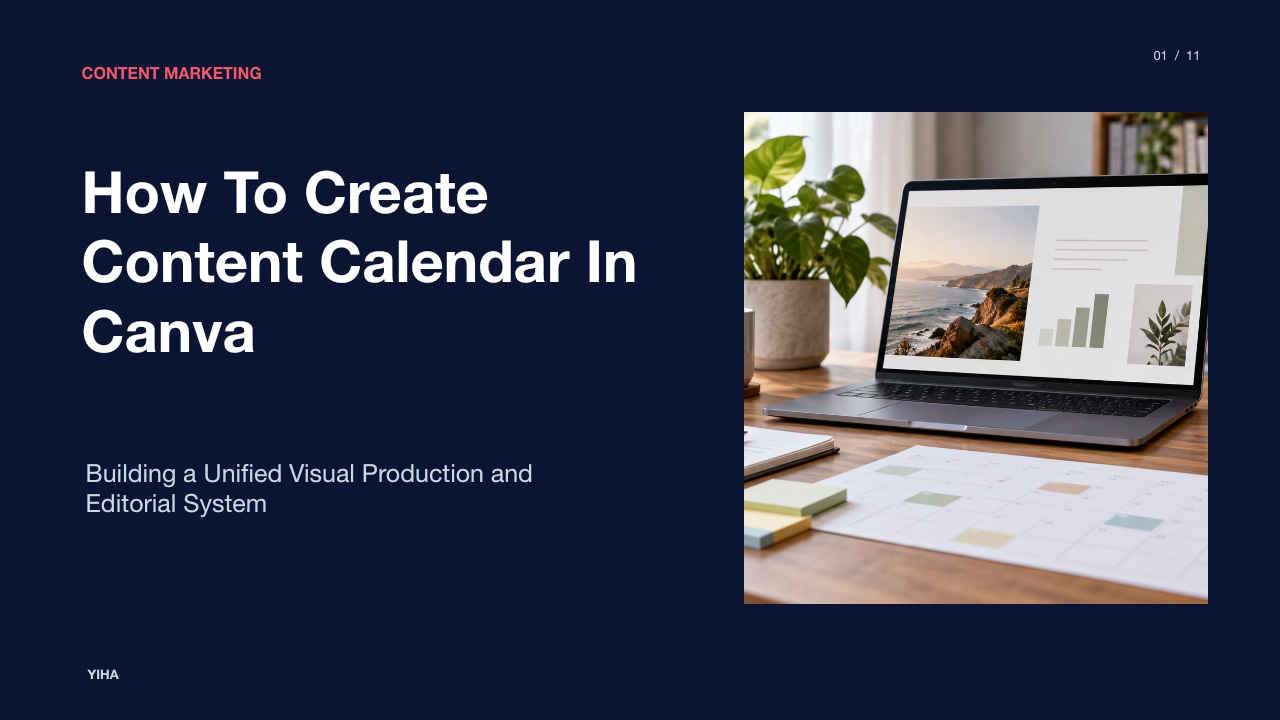
How To Create Content Calendar In Canva
A practical step-by-step guide to building a centralized content calendar in Canva. Connect editorial planning, multi-format graphic design, and social media scheduling in a single workspace.
Free download · 4.9 MB11 editable slides · PowerPoint format
Download the editable PPTX
PPTX · 4.9 MB · 11 editable slides · Free to edit and reuse with attribution to Yiha.ai
View every slide
Use ← →, Home/End, or swipe on mobile
Modern marketing teams and independent creators frequently find themselves trapped in disconnected software systems. Creative planning often begins in a standalone spreadsheet, draft visuals live in separate graphic design folders, copy sits in text documents, and scheduling occurs inside third-party distribution tools. When assets move across multiple platforms, version discrepancies emerge, links break, and review cycles slow down.
Building an integrated content calendar inside Canva addresses this problem by merging visual production and editorial tracking into a single working document. With features like Canva Sheets and multi-format design canvases, you can organize your strategic schedule, store captions, link working creative files, and schedule posts directly from one interface. This guide details how to plan, build, and maintain an end-to-end editorial system in Canva.
The Operational Bottleneck of Fragmented Content Workflows
Content production breaks down when planning spreadsheets, graphic asset folders, and distribution schedulers remain disconnected. When marketing teams manage daily tasks in one tool, design graphics in another, and copy text across various browser tabs, simple updates create operational friction. A change requested by an editor or client often requires modifying copy in a document, updating visual elements in an editor, re-exporting image files, and re-uploading them to a scheduler.
As observed in How to Create a Content Calendar That Actually Works - Taja.AI, opening a blank spreadsheet before defining a production system turns editorial planning into a rigid list of disconnected tasks. Spreadsheets alone cannot display graphic components in real time, and separate design tools lack visibility into publication dates and editorial status. Furthermore, team capacity planning becomes difficult when individual contributors cannot see how visual adjustments impact turnaround deadlines. Maintaining a fragmented pipeline increases manual data entry and risks publishing outdated graphic assets or incorrect captions.
Defining Content Pillars and Cadence Before Tool Selection
Before launching a software workspace, editorial teams must define the structural core of their marketing strategy. A calendar is merely an execution mechanism for broader objectives. If you do not outline your audience problems, key messaging themes, and sustainable publishing cadences in advance, the calendar will quickly become disorganized.
Industry frameworks emphasize defining core themes first. According to Create the Best LinkedIn Content Calendar, creators and marketers should establish three to five core content pillars that align directly with business goals and domain expertise. For example, an illustrative software business might establish four content pillars: educational industry analysis, product feature walkthroughs, customer case spotlights, and company culture updates. Mapping publishing cadence ensures each pillar receives balanced coverage throughout the month.
Strategic planning must also reflect available team resources. As detailed in How to Create a B2B Content Calendar That Drives Engagement and Growth, establishing clear goals and identifying channel strengths prevents burnout and ensures consistent long-term execution. High-performing editorial teams set a realistic publishing rhythm, such as three weekly feed posts and two weekly educational videos, before building tactical sheets.
Structuring Multi-Format Projects in Canva Visual Suite
Traditionally, graphic design platforms forced creators to maintain separate design documents for each asset format. A campaign required one file for square feed posts, another for vertical stories, and a third for wide video banners. Keeping track of related graphics across multiple project tabs led to folder clutter and asset misplacement.
Canva addresses this structural hurdle through its expanded Visual Suite capabilities. As highlighted in How to Create a Complete Content Calendar using Canva's New Features — Amber Figlow, modern Canva design workspaces permit multiple distinct page sizes and page types inside a single design document. In a single working file, creators can generate a vertical 9:16 mobile video, a square 1:1 Instagram post, and a 16:9 presentation banner side by side.
This unified document setup allows marketing teams to house all campaign creative assets alongside an editorial spreadsheet. By reducing the need to juggle dozens of browser windows, production teams can produce and review variations of a campaign within one consolidated environment, as shown in the New Canva Visual Suite Tutorial: How to Create a Content Calendar in Canva.
Designing the Master Content Grid with Canva Sheets
To construct an editorial calendar within Canva, you begin by creating a native spreadsheet. Within the Canva interface, select the "Sheet" design option or insert an embedded table block to act as your central planning grid. This grid tracks essential campaign metadata in structured rows and columns.
As outlined in New Canva Visual Suite Tutorial: How to Create a Content Calendar in Canva, an effective content tracking sheet should include eight primary metadata fields:
- Publication Date: The scheduled date and time for distribution.
- Status: The current production stage of the asset.
- Platform: The distribution channel, such as LinkedIn, Instagram, or Pinterest.
- Content Pillar: The strategic topic category.
- Visual: A direct hyperlink to the specific design canvas page within the file.
- Copy / Caption: The text copy, hashtags, and links for the post.
- Notes: Editorial instructions, production observations, and brainstormed ideas.
- Post Link: The live URL added following publication for tracking and reporting.
Structuring these fields within Canva Sheets ensures that copywriters, designers, and managers share visibility into each item's progress, preventing the confusion that arises from scattered communication threads.
Configuring Dynamic Status Dropdowns and Editorial Stages
Data validation keeps editorial grids clean and readable. When team members type arbitrary text into status fields, sorting and tracking become unreliable. Using predefined dropdown menus standardizes entries across the entire team.
Canva Sheets provides built-in dropdown creation tools. Based on steps outlined in How to Create a Complete Content Calendar using Canva's New Features — Amber Figlow, users can highlight a column, access the field options, and configure custom dropdown menus with distinct color tags. Applying consistent lifecycle stages, such as Idea, In Production, In Review, Scheduled, and Published, provides instant visual clarity across dozens of rows.
Standardizing status stages mirrors proven project management principles. In systems detailed by Content Calendar Asana: Create a Content Calendar in Asana, maintaining uniform workflow stages ensures every collaborator understands exactly when an asset passes from drafting to review. In Canva, assigning distinct colors to statuses, such as yellow for drafting, purple for review, and green for published, allows editors to assess monthly production health at a glance.
Linking Creative Canvas Pages Directly to Calendar Rows
Connecting data rows directly to design assets eliminates the search time typically required to locate design files. In traditional setups, a team member reading a calendar must navigate to external cloud folders to inspect the accompanying artwork.
Canva resolves this through bidirectional internal page linking. In New Canva Visual Suite Tutorial: How to Create a Content Calendar in Canva, the presenter explains how users create individual design pages within the same multi-format document and name each page clearly (for example, "May 04 - Product Feature Carousel"). Next, you navigate back to the master Canva Sheet, select the cell under the Visual column, and link directly to that specific canvas page.
As explained in How Do I Use Content Calendar in Canva? - WebsiteBuilderInsider.com, linking design pages within your editorial structure streamlines reviews. An approver can open the sheet, click the visual cell link, and immediately inspect the exact design page. Any corrections made directly on the canvas take effect instantly without broken file links or duplicate versions.
Publishing and Automating via Canva Content Planner
Once copy is finalized and creative pages are approved, teams can schedule their assets using the native Canva Content Planner. This tool connects directly to supported social media channels, allowing users to schedule content without downloading and re-uploading media files.
Through Canva Content Planner, creators can schedule posts directly to business accounts on platforms such as Facebook, Instagram Business, LinkedIn, and Pinterest, as detailed in How to Create a Complete Content Calendar using Canva's New Features — Amber Figlow. To schedule an asset, open the completed design page, select the Share button, choose Schedule, and select your target platform and posting time. The copy documented in your Canva Sheet can be pasted directly into the scheduler caption box.
Automating the publishing handoff reduces execution errors. As noted in How to Create a Marketing Content Calendar That Works, centralized publishing workflows reduce human error and eliminate last-minute scrambles. While certain direct distribution features require Canva Pro, the ability to transition from raw design canvas to scheduled queue within one platform significantly streamlines the final distribution step.
Analyzing Architectural Limits Against Dedicated Databases
While Canva provides an intuitive all-in-one workspace for small teams and solo creators, it is important to analyze its architectural boundaries against specialized relational database tools like Airtable or enterprise project systems like Asana.
As detailed in How to create a custom content calendar in Airtable [+template], dedicated database systems offer advanced features like granular field-level user permissions, external client review portals, relational linking between tables, and custom API automations. In contrast, Canva Sheets functions as an embedded grid tool. It lacks automated multi-condition database formulas, complex webhooks, and granular user permission toggles that prevent unauthorized team members from editing specific columns.
Furthermore, project management tools like Asana allow teams to assign dependent subtasks, track detailed task histories, and manage workloads across departmental teams, as described in How to Create a Content Calendar Using Asana – Lindsay Kirsch. Organizations managing high-volume campaigns across dozens of simultaneous clients or complex multi-tier review hierarchies may find that Canva is best suited as a creative design engine alongside a dedicated database rather than a standalone relational database replacement.
Establishing Team Collaboration and Editorial Governance
Maintaining a functional content calendar requires consistent editorial governance and clear team expectations. A calendar template will only succeed if the team adheres to defined lead times, review cycles, and routine check-ins.
As emphasized in How to Create a Marketing Content Calendar That Works, organizations should commit to regular check-ins and structured review workflows to maintain asset quality and prevent missed deadlines. Lead times must be clearly defined; for instance, design assets and draft copy should be ready for review at least two weeks before their target publishing date, as recommended in industry planning frameworks. This buffer ensures that copywriters, designers, and approving managers can complete feedback cycles without emergency revisions.
Within Canva, collaborators can leave contextual comments directly on specific visual elements or sheet rows by mentioning colleagues with the @ symbol, mirroring collaboration workflows highlighted in Content Calendar Asana: Create a Content Calendar in Asana. Team members receive notifications, resolve editorial notes in place, and adjust status pills accordingly. Conducting a monthly retrospective to examine top-performing posts and retire underperforming formats completes the workflow cycle, ensuring that the calendar remains a dynamic operational asset.
Research sources
- How to Create a Content Calendar That Actually Works - Taja.AI · www.taja.ai
- How to create a custom content calendar in Airtable [+template] · www.softr.io
- How to Create a Marketing Content Calendar That Works · www.roboticmarketer.com
- Create the Best LinkedIn Content Calendar · www.miracamp.com
- How to Create a B2B Content Calendar That Drives Engagement and Growth · www.marketinglab.digital
- New Canva Visual Suite Tutorial: How to Create a Content Calendar in Canva · lilys.ai
- How to Create a Complete Content Calendar using Canva's New Features — Amber Figlow · www.amberfiglow.com
- How to Create a B2B Content Calendar for Sales · www.linkedin.com
- Content Calendar Asana: Create a Content Calendar in Asana · www.scottsocialmarketing.com
- How Do I Use Content Calendar in Canva? - WebsiteBuilderInsider.com · www.websitebuilderinsider.com
- How to Create a Content Calendar Using Asana – Lindsay Kirsch · www.lindsaykirsch.com