Make A Short Video Presentation
A step-by-step practical guide to planning, storyboarding, recording, and editing concise asynchronous video presentations that communicate ideas clearly without cognitive overload.
Free download · 4.9 MB11 editable slides · PowerPoint format
Download the editable PPTX
PPTX · 4.9 MB · 11 editable slides · Free to edit and reuse with attribution to Yiha.ai
View every slide
Use ← →, Home/End, or swipe on mobile
Short video presentations have become a primary vehicle for sharing updates, demonstrating software, and onboarding team members. Instead of locking teams into synchronous calendar blocks or sending static slide attachments that get skimmed, recorded walkthroughs combine visual context with spoken nuance. Producing an effective short video presentation requires deliberate planning. Creators must align their messaging with multimedia learning principles, structure visual transitions intentionally, and capture clean audio. This guide examines the essential steps to design, record, and publish high-impact video presentations.
The Rise of Asynchronous Video Communication
Modern distributed work environments frequently face calendar saturation caused by recurring informational meetings. Synchronous meetings require every participant to align their schedule simultaneously, which can delay decision-making and fragment deep work hours. As documented by Loom's analysis on asynchronous communication, relying heavily on synchronous communication slows down teamwork by stacking calendars and postponing progress until all stakeholders can meet.
Compact on-demand video presentations resolve this challenge by decoupling information transmission from shared calendars. A recorded presentation creates an exact, verifiable record of spoken context, project demonstrations, or strategic goals. Viewers can consume the presentation at their own speed, pause to inspect technical details, or replay sections requiring clarification. Furthermore, Visme's guide to interactive video presentations notes that self-paced and interactive video formats enable viewers to explore content aligned with their responsibilities, such as jumping directly to technical specifications or high-level summaries.
However, asynchronous video also introduces clear operational trade-offs. The presenter cannot read immediate facial expressions, adjust explanations on the fly, or field spontaneous clarifying questions. Therefore, the presenter must anticipate points of confusion and ensure the video remains focused on a single topic rather than wandering into adjacent discussions.
Cognitive Principles of Multimedia Learning
Creating an effective short video presentation is not simply a matter of reading text off a slide into a microphone. Educational psychologist Richard E. Mayer established through multimedia learning research that human working memory processes verbal and visual channels separately. When both channels are overloaded with identical or extraneous information, comprehension degrades significantly.
As highlighted in Visme's analysis of multimedia presentations, Mayer found that people learn substantially better when extraneous material is excluded rather than included. Jamming decorative graphics, complex tables, and full sentence transcripts onto a slide forces the viewer to split their attention between reading text and listening to narration. Atlassian's guide to video presentations similarly emphasizes that packing too much on-screen text overwhelms viewers, advising creators to keep slides minimal while allowing spoken narration and primary graphics to deliver the core message.
To apply the segmenting and multimedia principles, presenters should assign each slide or scene exactly one conceptual job. If a topic introduces three separate product capabilities, divide the explanation into three distinct visual frames rather than clustering them on a single graphic.
Structuring the Narrative and Defining the Hook
Short video presentations succeed or fail in their opening seconds. In an asynchronous environment where viewers multitask, a drawn-out introduction guarantees drop-off. According to Atlassian's complete guide on video presentations, effective messaging requires a conversational script that breaks complex topics into digestible chunks focused on one concept at a time.
A proven narrative structure for short-form video consists of four phases: the hook, the problem, the solution, and the call to action. The hook articulates the core challenge or insight immediately. Rather than reciting speaker credentials or general pleasantries, state the central topic in the first five seconds. Next, describe the operational tension or friction point that demands attention. The solution demonstrates the methodology, product update, or finding using concise visual evidence. Finally, the presentation closes with an explicit call to action directing the viewer to the next step, such as testing a feature, approving a proposal, or logging feedback.
An illustrative example of this structure is a concise technical release briefing. The presenter opens with the hook: "Our payment pipeline latency doubled during peak hours." The problem section outlines server queue bottlenecks. The solution presents two architectural configuration changes with an accompanying diagram. The call to action prompts engineers to review the migration checklist before deployment.
Storyboarding Shots and Controlling Pacing
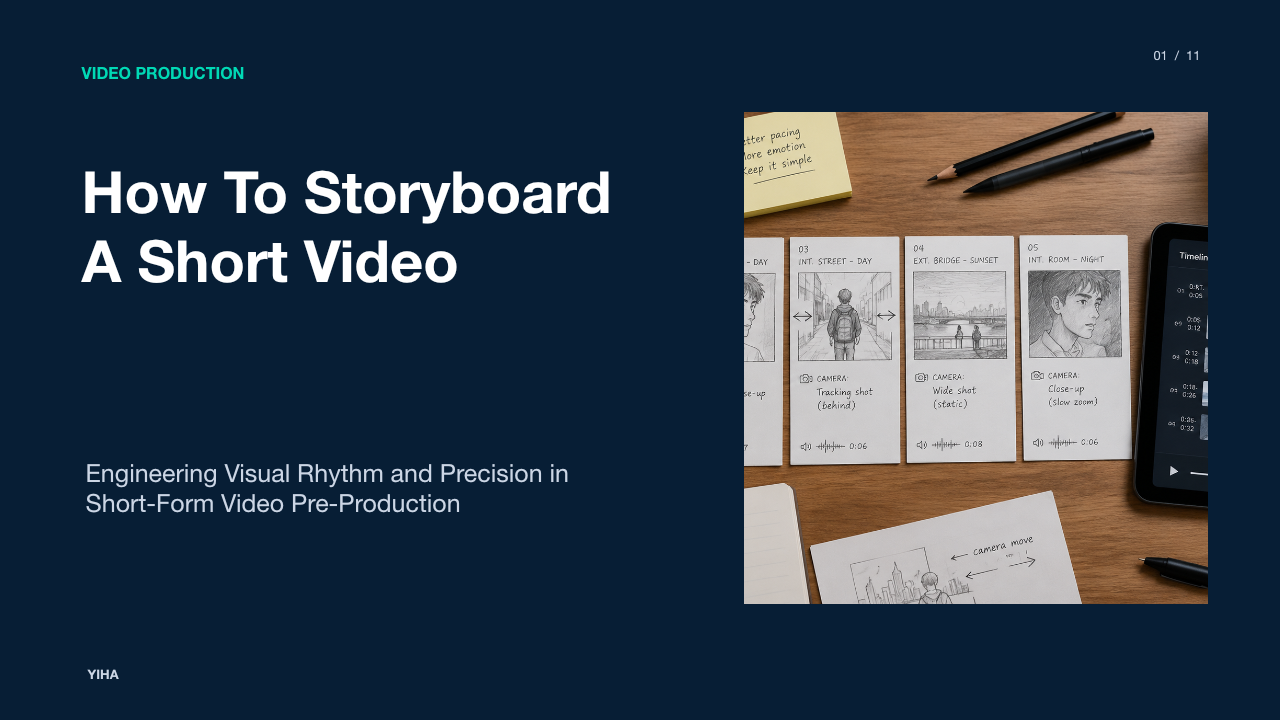
Translating an outline into an engaging presentation requires shot-by-shot visual mapping before touching recording software. As explained by StoryToShot's analysis of short-form storyboarding, a script describes what happens, but a storyboard converts written words into visible decisions regarding framing, duration, and screen intent. Without a shot plan, creators must improvise visual pacing during production, often resulting in stagnant screens or disjointed visual jumps.
A usable storyboard assigns every scene a designated duration, camera framing, and purpose. As outlined in CapCut's short-form storytelling framework, fast pacing does not mean cutting every second. When visual information is dense, such as a code repository or product user interface, the viewer requires two to four seconds to comprehend the visual context. Pacing should provide deliberate breathing room on technical assets while maintaining energetic momentum through transitional sequences.
To construct a storyboard, audit each transition against a single test: does this shot establish context, reveal evidence, or show a reaction? If two consecutive shots perform the exact same job, merge them. If a single frame attempts to convey multiple disparate messages, divide it into distinct beats.
Selecting the Presentation Format
Selecting the visual recording format dictates how viewers perceive your credibility and process your material. As detailed in VEED's video presentation guide, selecting the right format depends on the communication objective. Common formats include talking-head recordings, screen recordings with voiceover, static slide walkthroughs, and hybrid picture-in-picture layouts.
Talking-head video creates personal engagement, facial expressiveness, and trust, making it suitable for leadership announcements, customer updates, and strategic pitches. However, talking-head video fails when explaining user interfaces, analytics dashboards, or technical workflows. Conversely, pure screen recording with voiceover excels at software demonstrations, tutorials, and data walkthroughs, but it can feel impersonal over longer durations. Atlassian's guide to video presentations recommends hybrid picture-in-picture recording, where the presenter's webcam sits in a corner window beside the primary screen content, combining personal rapport with visual clarity.
The primary limitation of hybrid layouts is visual occlusion. A webcam bubble placed in the lower-right corner can unintentionally block critical interface navigation buttons, table legends, or data labels. Presenters must design their slides and software windows with dedicated margin areas reserved for the camera feed.
Acoustics and Voice Recording Essentials
While visual fidelity captures initial interest, audio quality determines whether an audience watches a presentation to completion. In speech recording, listeners tolerate imperfect video resolution but quickly abandon recordings with distorted, muffled, or reverberant vocal audio. In Sound On Sound's comprehensive guide to recording the spoken voice, audio engineer Hugh Robjohns explains that recording spoken voice is often more demanding than recording singing. Because listeners are acutely accustomed to the natural human voice, any acoustic coloration or room reflection stands out immediately.
Capturing professional voice recordings requires understanding microphone pickup patterns, proximity effect, and acoustic reflections. Directional microphones, such as cardioid patterns, pick up sound primarily from the front while rejecting ambient room reflections from the sides and rear. Position the microphone off-axis from direct breath flow, roughly half a meter away or slightly above the mouth, to avoid plosive air bursts on letters like 'p' and 'b'. Maintain a consistent physical distance from the capsule; leaning excessively close triggers the proximity effect, artificially boosting low frequencies into boomy, unintelligible bass.
Room acoustics matter as much as transducer selection. Bare walls, hard floors, and large glass windows reflect sound waves, creating hollow room reverb. Placing soft furnishings, curtains, or acoustic panels around the workspace increases the direct-to-reverberant sound ratio, ensuring a dry, articulate vocal track.
Visual Framing, Lighting, and Screen Setup
Visual composition communicates preparation and professionalism. CapCut's guide to vertical and short-form framing emphasizes that creators should design shots around what the viewer needs to notice first, using tighter blocking, cleaner backgrounds, and strong eye lines. An uncalibrated camera angle or cluttered computer display forces the audience to filter out irrelevant visual distractions.
When presenting on camera, mount the webcam at eye level rather than looking downward from a laptop chassis. Looking down distorts facial proportions and breaks perceived eye contact with the viewer. Position primary lighting in front of your face slightly above eye level, avoiding harsh overhead ceiling bulbs or bright unshaded windows directly behind you, which turn your camera feed into an underexposed silhouette. On your computer monitor, close unrelated chat clients, browser tabs, and desktop icons. Enlarge system cursor sizing and increase display scaling so interface elements remain readable on smaller mobile screens.
Accessibility standards also apply to visual design. According to the W3C Web Accessibility Initiative planning guide, visual clarity requires adequate contrast between text and background elements. High-contrast typography ensures that viewers with visual impairments or those watching on low-brightness mobile screens can read on-screen text effortlessly.
Recording Technique and Segmented Delivery
Delivering a short video presentation requires conversational clarity without robotic memorization. As detailed in Loom's guide to recording presentations, combining screen capture with a friendly webcam presence builds engagement, while breaking material into structured segments prevents viewer fatigue. Rather than attempting to record an entire presentation in a single continuous take, use modular section-by-section recording.
According to SlidesAI's guide on making video presentations, writing short bullet notes rather than word-for-word scripts keeps spoken delivery natural and engaging. When recording modular sections, pause cleanly after completing each slide or major concept. If you misspeak or stumble over a sentence, pause silently, reset your posture, and restate the thought from the beginning of that specific sentence. This creates visible silent gaps in the audio waveform, making later trims fast and seamless.
Avoid rushing through delivery to hit an arbitrary time constraint. Speak at a measured conversational pace, allowing brief pauses after important metrics or takeaways so viewers can absorb the information before the next slide transitions.
Editing, Accessibility, and Asynchronous Review
Post-production turns raw recorded takes into a clean, accessible video presentation. Simple edits should prioritize message clarity over elaborate visual styling. As recommended in SlidesAI's presentation workflow, beginner-friendly video tools allow creators to trim awkward pauses, cut out false starts, and apply straightforward cuts without technical overhead. Atlassian's video guide cautions against overusing transitions, excessive background music, and flashy visual effects, which distract viewers from core insights.
Accessibility is an indispensable component of publishing video presentations. The W3C Web Accessibility Initiative media standard explains that providing accurate captions and transcripts is essential for individuals who are deaf or hard of hearing, while also benefiting viewers watching in sound-sensitive environments. Always generate closed captions, review them for technical terminology accuracy, and ensure text blocks do not obscure critical slide information. Adding timestamped chapter markers enables asynchronous team members to navigate directly to sections relevant to their immediate tasks.
Before publishing, preview the exported MP4 video completely to verify audio synchronization and slide typography. Once validated, distribute the video with a brief written summary outlining the primary objective and the expected next steps.
Research sources
- How to Make a Video Presentation: The Complete Guide · www.atlassian.com
- Asynchronous Communication Has Changed Work As We Know It · www.atlassian.com
- How to Make an Interactive Video Presentation: A Step-by-Step Guide · visme.co
- How to Make a Video Presentation: A Step-by-Step Guide · www.veed.io
- PPT - Short Films and Video PowerPoint Presentation, free download - ID:2115082 · www.slideserve.com
- Why Short-Form Video Needs a Storyboard | StoryToShot · www.storytoshot.com
- Short-Form Video Storytelling for a 60-Second Arc · www.capcut.com
- Recording The Spoken Voice · www.soundonsound.com
- Planning Audio and Video Media | Web Accessibility Initiative (WAI) | W3C · www.w3.org
- Record a PowerPoint Presentation Video with Webcam and Audio · www.atlassian.com
- How to Make a Video Presentation in 7 Simple Steps | SlidesAI · www.slidesai.io
- Making Audio and Video Media Accessible | Web Accessibility Initiative (WAI) | W3C · www.w3.org