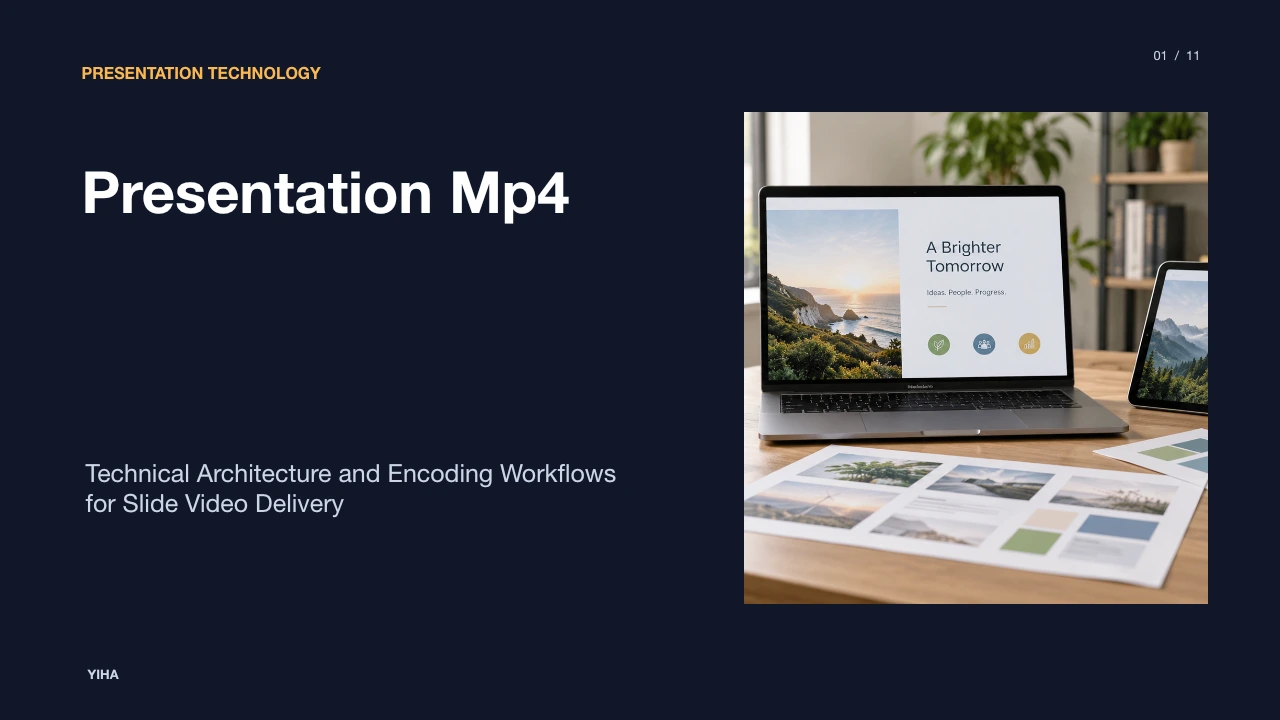
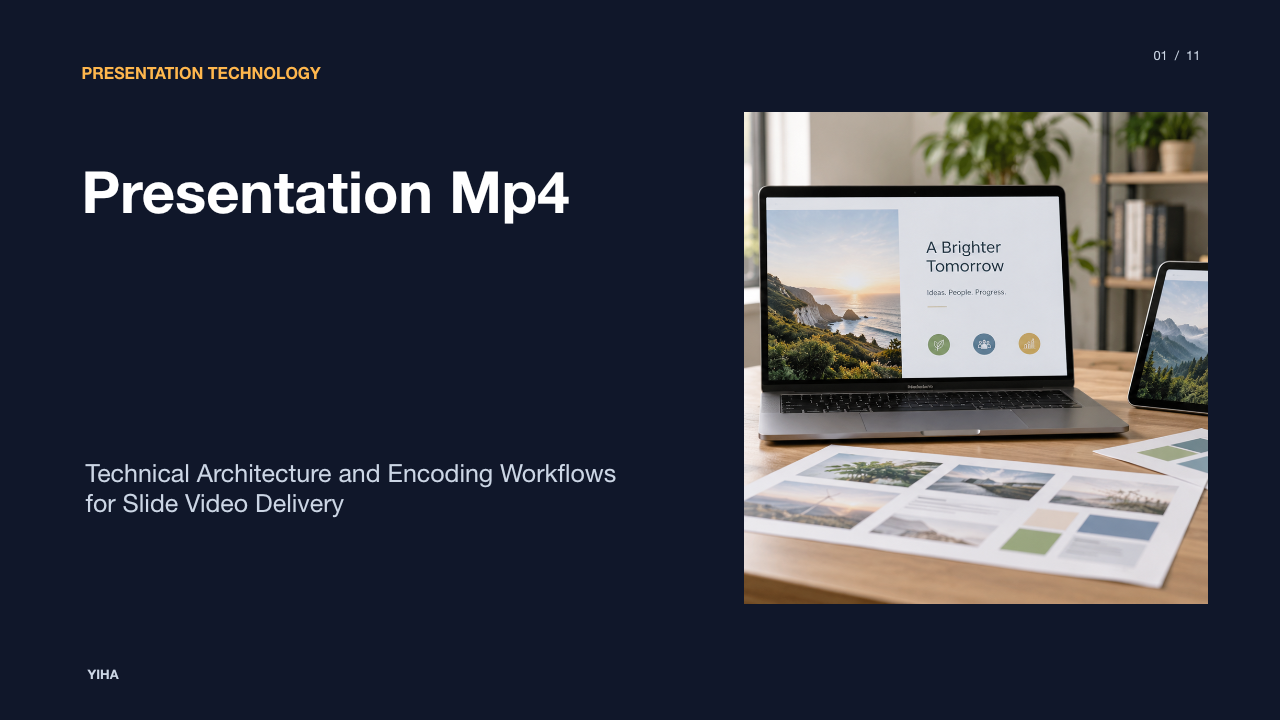
Presentation Mp4
A technical guide to converting Microsoft PowerPoint decks into standalone MP4 videos, covering container formats, AVC codecs, audio narration sync, and export pipelines.
Free download · 4.9 MB11 editable slides · PowerPoint format
Download the editable PPTX
PPTX · 4.9 MB · 11 editable slides · Free to edit and reuse with attribution to Yiha.ai
View every slide
Use ← →, Home/End, or swipe on mobile
Converting a slide deck into a video format fundamentally alters how instructional and commercial content reaches audiences. While live slide presentations depend on a human speaker advancing through content manually, an MP4 export binds graphic visuals, recorded speech, and automated transitions into a single linear file. Understanding how presentation software processes, encodes, and delivers multimedia assets helps professionals build durable digital presentations that play reliably across modern operating systems, web portals, and mobile devices.
The Shift to Asynchronous Video Presentations
Modern communication workflows increasingly rely on asynchronous sharing rather than synchronous live meetings. When teams share slides across distributed time zones, expecting recipients to step through static slides without context often leads to lost nuance. Converting presentations into video files provides an exact, repeatable narrative structure where every viewer receives identical explanation, pacing, and visual emphasis.
As outlined in Turn your presentation into a video | Microsoft Support, exporting a presentation captures recorded timings, voice narration, animations, and pointer gestures directly into the media file. This turns static visuals into an autonomous viewing experience. Furthermore, while platforms such as Free AI PowerPoint Maker for Editable Presentations - Templafy streamline the initial assembly of editable slide files inside enterprise environments, exporting the final deck into a self-contained video prevents unexpected layout shifts or missing elements when recipients lack matching office suites.
The MP4 Container and AVC/AAC Codec Standards
The MPEG-4 Part 14 container, commonly recognized by the .mp4 file extension, functions as a standardized multimedia wrapper. Inside this container, video and audio streams are stored along with metadata and synchronization markers. The container itself does not dictate how data is compressed; instead, it holds distinct bitstreams processed by specific decoders.
In standard presentation workflows, PowerPoint pairs the container with the Advanced Video Coding standard (H.264/AVC) for video and Advanced Audio Coding (AAC) for audio. As noted in documentation by PowerPoint Video Formats - Select the Best Video Format for PowerPoint, H.264 and WMV are core standards for slide presentation software. H.264 remains the default choice across modern hardware because virtually all web browsers, operating systems, and mobile devices include native hardware acceleration for AVC decoding. This broad compatibility ensures that an exported presentation plays immediately without requiring specialized third-party media players.
Embedding MP4 Media Within Slide Decks
Before exporting an entire presentation to MP4, authors frequently embed short video clips directly onto specific slides. Modern presentation software handles media either by embedding the entire file inside the slide package or by maintaining a relative hyperlink to an external file on the local hard drive.
Embedding incorporates the binary video payload directly into the presentation container. While this process significantly increases the overall file size of the slide deck, it guarantees that moving the presentation across network storage does not break media paths. Conversely, linked assets require strict directory path maintenance. When authors transition their workflows using cloud platforms or tools like the Free AI PowerPoint Maker for Editable Presentations - Templafy add-in, embedded assets stay intact, whereas linked references frequently point to missing local paths when opened on another computer.
An illustrative example clarifies the trade-off: an author embeds a 40 megabyte MP4 demo clip onto slide three of a 5 megabyte deck. The resulting presentation file grows to roughly 45 megabytes. When shared via email or cloud drives, the presentation retains full playback functionality without requiring secondary file attachments.
Synchronizing Narrations, Cameo, and Timings
A primary technical hurdle when producing presentation video involves balancing the visual stream with the presenter's voice. Presenters record spoken audio, laser gestures, and optional camera video slide by slide. As detailed in Turn your presentation into a video | Microsoft Support, all recorded timings and voiceovers are saved directly within the presentation structure.
Audio and visual elements must work together to avoid overwhelming viewer working memory. Research discussed in PPT - Cognitive Load Theory and Multimedia Learning PowerPoint Presentation - ID:4896792 highlights the modality effect, which shows that human working memory processes verbal and visual information through separate channels. When audio narration explains a diagram simultaneously with animated highlights, essential processing shifts smoothly across visual and auditory channels. Conversely, reading full paragraphs of text while listening to identical spoken narration creates extraneous cognitive load. Authors should time voice tracks to align precisely with visual revelations rather than speaking during silent transitional pauses.
The PowerPoint Video Export Pipeline
The export engine converts individual vector objects, typography, audio samples, and transition physics into a flat rasterized video stream. When a user selects the export command in PowerPoint, the software initiates a serialization pipeline that steps through each slide sequentially.
According to Turn your presentation into a video | Microsoft Support, PowerPoint allows authors to continue working on other tasks while rendering proceeds in the background, with overall progress reflected in the lower status bar. The rendering engine rasterizes slide layouts at the chosen output resolution, renders transition animations frame by frame, and mixes recorded narration tracks into a continuous AAC audio channel. If a slide includes an embedded MP4 video, the host application decodes the embedded frames and re-encodes them synchronously into the master export sequence.
Resolution Profiles and Bitrate Allocation
Selecting the appropriate export resolution directly affects export duration, final file volume, and viewing clarity. PowerPoint provides multiple preset export tiers, ranging from standard definition up to Ultra HD.
Guidance from Turn your presentation into a video | Microsoft Support emphasizes that higher video quality results in significantly larger output files. Typical resolution profiles include:
- Ultra HD (4K / 3840x2160): Recommended for presentations containing intricate architectural diagrams, detailed engineering schematics, or large screen kiosk displays.
- Full HD (1080p / 1920x1080): The standard default recommendation for enterprise monitors, web video portals, and desktop viewing.
- HD (720p / 1280x720): Recommendation for mobile distribution, fast internal network reviews, or systems with strict file size caps.
- Standard (480p / 852x480): Legacy tier suited only for very low-bandwidth network environments.
Each resolution profile allocates a specific average bitrate. Higher resolutions allocate more bits per second, which increases processing time during the compression phase.
Dynamic Slide Decks Versus Rendered MP4 Files
Deciding between sharing an editable slide format and exporting a rendered MP4 video involves evaluating accessibility, interactivity, and control. In an editable format or a PowerPoint Show (.ppsx), the presentation remains an interactive bundle of text, vector shapes, and linked data. As noted in Turn your presentation into a video | Microsoft Support, a PowerPoint Show opens full-screen immediately, allowing recipients to click through slides at their own pace.
In contrast, an MP4 file is completely immutable. The recipient cannot edit typographic errors, alter branding colors, or modify underlying spreadsheet tables. While this lack of editability prevents audience tampering and ensures visual consistency across operating systems, it also eliminates non-linear navigation. Viewers can scrub the playback bar, but they cannot click internal hyperlinks or jump between custom slide sections as they would in an active presentation file.
Common Export Failures and Encoding Bottlenecks
Video rendering can fail or stall due to missing codecs, file locks, or media corruption. When an export hangs mid-render, the underlying cause is frequently linked to incompatible source media formats or missing system decoders.
As explained in PowerPoint Video Formats - Select the Best Video Format for PowerPoint, older presentations or unsupported video formats cause codec errors such as failure to insert or play selected media. For instance, legacy versions such as PowerPoint 2010 required external components like QuickTime to handle MP4 containers. Re-encoding source media into standardized H.264 video resolves decoding collisions before rendering begins.
Another frequent problem occurs when active cloud synchronization software locks the output destination while the rendering engine writes temporary blocks. Saving the exported video to a local hard drive before uploading it to shared network folders prevents synchronization collisions and write errors.
Deployment Strategies for Learning and Archival
Once an MP4 video presentation is rendered, distribution requires structured storage, hosting, and brand governance. Enterprise environments frequently route video deliverables into dedicated video libraries, intranet learning management systems, or cloud repositories.
When managing large presentation libraries, organizations often combine standardized master video files with enterprise template controls. Documentation from Free AI PowerPoint Maker for Editable Presentations - Templafy highlights the value of connecting presentation creation with company-approved templates, brand assets, content libraries, and governance controls. Enforcing these brand assets before exporting to video ensures that asynchronous training materials adhere to corporate identity standards.
For long-term digital preservation, retaining both the editable presentation file and the exported MP4 provides a balanced archive. The MP4 delivers dependable visual reproduction years later across diverse hardware, while the native presentation file allows instructional designers to revise text and figures as organizational requirements evolve.
Research sources
- Free AI PowerPoint Maker for Editable Presentations - Templafy · www.templafy.com
- PPT - Cognitive Load Theory and Multimedia Learning PowerPoint Presentation - ID:4896792 · www.slideserve.com
- Turn your presentation into a video | Microsoft Support · support.microsoft.com
- PowerPoint Video Formats - Select the Best Video Format for PowerPoint · www.videoconverterfactory.com
- Social media powerpoint presentation | PPTX · www.slideshare.net
- ChatGPT + PowerPoint: What the Integration Can (and Can't) Do in 2026 · www.usecarly.com
- On-demand data storytelling & PowerPoint courses | master presentation & communication skills · www.storytellingwithdata.com
- PPT - Mastering Cinematography: Art of Capturing Moving Images PowerPoint Presentation - ID:9324530 · www.slideserve.com
- PPT - Playground Safety Guide: Preventing Hazards PowerPoint Presentation - ID:4459786 · www.slideserve.com