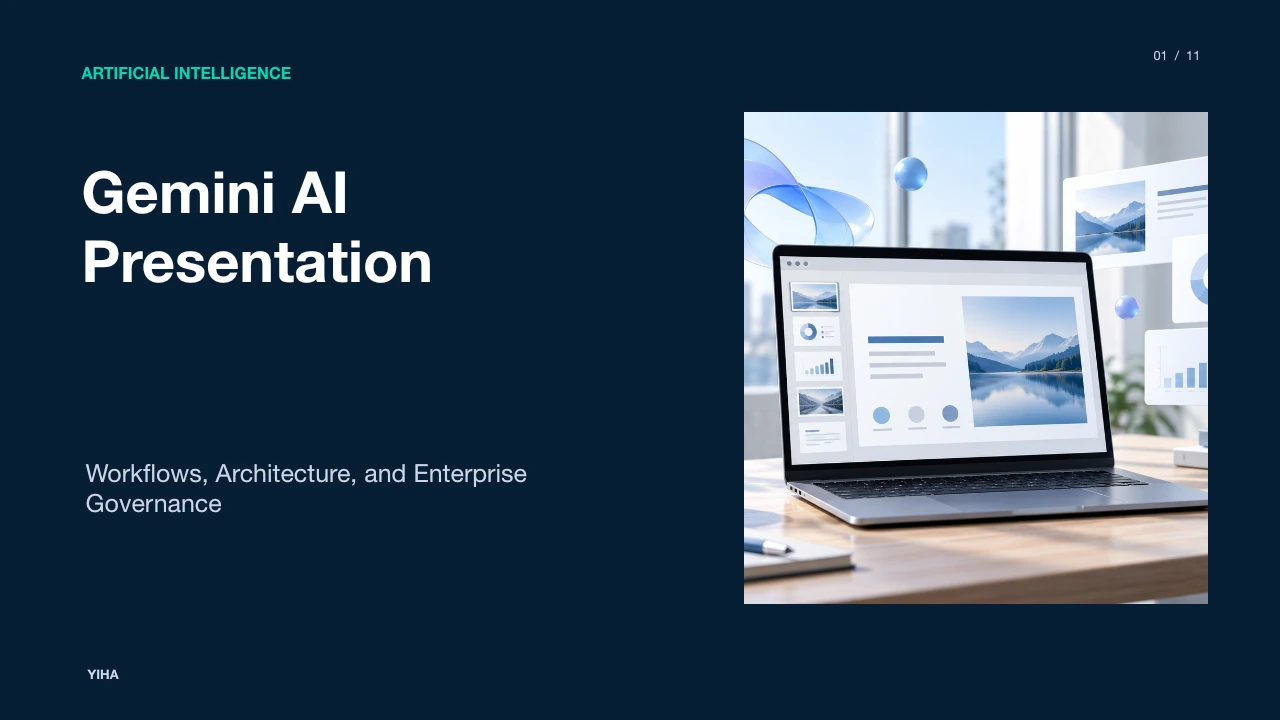
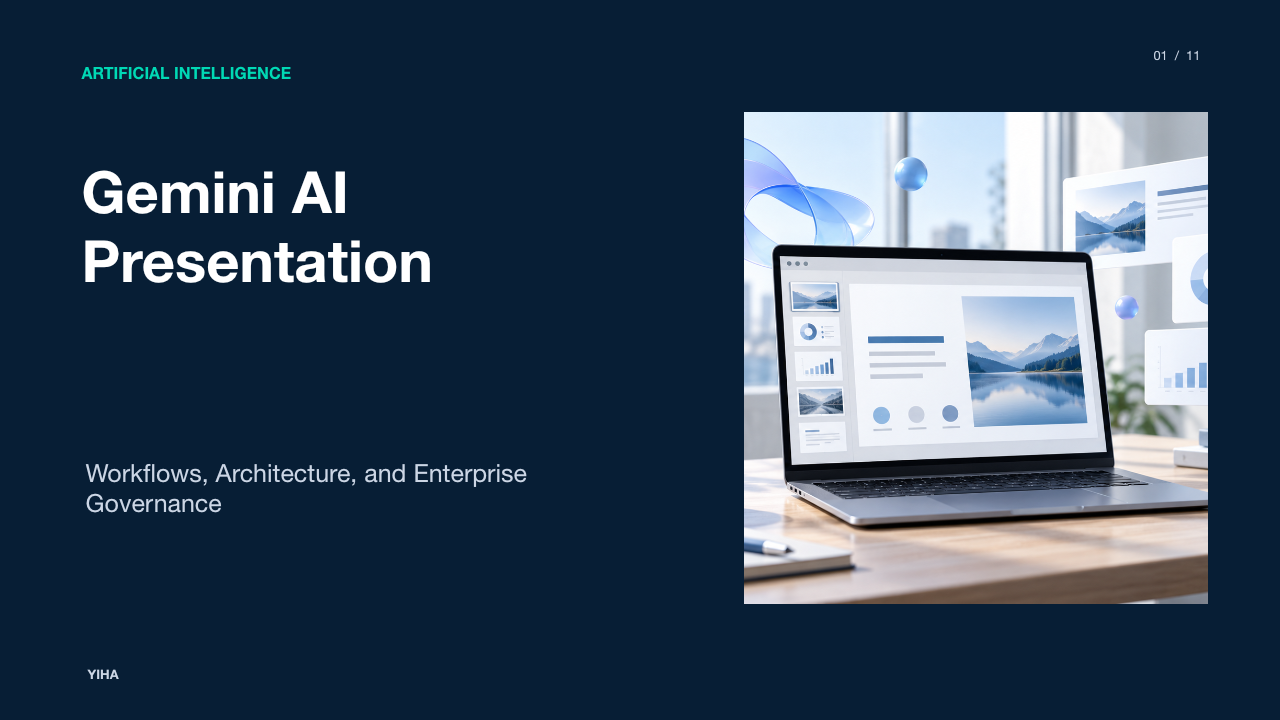
Gemini AI Presentation
A technical guide to building presentations with Google Gemini. Explore Gemini Canvas workflows, source document grounding, Imagen 3 generation, cross-platform export options, and human-in-the-loop review practices for enterprise teams.
Free download · 4.9 MB11 editable slides · PowerPoint format
Download the editable PPTX
PPTX · 4.9 MB · 11 editable slides · Free to edit and reuse with attribution to Yiha.ai
View every slide
Use ← →, Home/End, or swipe on mobile
Generative artificial intelligence has altered how professionals draft, structure, and refine slide decks. Rather than beginning with a blank slide canvas and manually formatting text frames, presenters can use Google Gemini to synthesize raw source material into organized presentations. Across Google Workspace and Gemini Enterprise, these capabilities span dedicated generative workspaces, side-by-side editing interfaces, and grounded multimodal asset creation. Understanding how these tools function, where their boundaries lie, and how to structure prompts ensures teams produce accurate, executive-ready presentations without sacrificing corporate standards.
The Evolution of Automated Slide Generation
Traditional presentation creation requires substantial manual effort, beginning with structural outlining and progressing through layout drafting, typography adjustments, and graphic placement. The introduction of large language models inside enterprise productivity suites has changed this dynamic by resolving blank-slate friction. Instead of building slide decks element by element, users can present unorganized notes, research papers, or project charters to Gemini to generate cohesive outlines and complete drafts.
As documented in Create and edit documents and slides in Canvas, Gemini Enterprise introduces a dedicated Canvas environment where conversational instructions convert directly into multi-slide presentations. In this interface, users work side by side with the conversational agent, viewing the generated deck on the right side of the screen while preserving chat history on the left. This dual-surface model allows the generative engine to interpret broad narrative themes, assign slide counts, and populate headings, bullet points, and speaker notes in a single pass.
Furthermore, Google Cloud highlights in Gemini at Work 2026: Introducing Gemini agent that enterprise environments increasingly orchestrate multi-model workflows. For example, proactive delegation capabilities allow users to convert incoming briefing requests into slide decks with minimal manual setup. Enterprise organizations such as Bradesco have used Gemini Enterprise to automate document review workflows, while Commerzbank reduced manual document review hours significantly. By shifting presentation building from mechanical formatting to structural prompting, automated authoring frees professionals to focus on narrative clarity and critical reasoning.
Gemini Canvas Versus the Workspace Sidebar
Within the Google ecosystem, users encounter two distinct interfaces for presentation generation: Gemini Canvas and the Google Slides sidebar. Recognizing the operational differences between these two environments is essential for choosing the correct authoring path.
As explained in How to Use Gemini Prompts to Create Professional PowerPoint and Google Slides Presentations, the Google Slides sidebar is primarily designed for inline assistance and micro-editing. Presenters opening a blank presentation in Google Slides can use the Ask Gemini side panel to summarize existing slide content, draft a single slide, or generate an individual illustration. However, initiating an entire multi-slide deck from a single prompt within the sidebar is often impractical, as the side panel is optimized for localized updates rather than end-to-end slide deck generation.
In contrast, Gemini Canvas serves as a dedicated zero-to-one authoring space. According to Create and edit documents and slides in Canvas, opening Canvas allows users to submit extensive background instructions and referenced source files. Canvas generates complete, structured slide sets side by side with the chat feed. It provides direct text editing tools, global tone sliders, length adjusters, and targeted text rewrite options. Canvas is therefore suited for initial drafting, while the Slides sidebar excels at refining individual slides during later revision stages.
Grounding Presentations in Source Documents
One of the most persistent operational risks in generative presentation authoring is hallucination. When an artificial intelligence model generates technical, financial, or strategic slides from ungrounded prompts, it may invent figures, misstate metrics, or produce vague generalities. Grounding connects model output directly to verifiable facts.
As outlined in Grounding overview, Gemini Enterprise Agent Platform enables organizations to tether model output to specific data repositories. This includes retrieval-augmented generation (RAG) connected to internal knowledge bases, Agent Search repositories, and structured enterprise databases. Grounding constrains the model's generative scope, requiring it to cite verifiable information rather than relying exclusively on broad training data.
In practical presentation authoring, grounding occurs directly within the Canvas interface. According to Create and edit documents and slides in Canvas, users can attach files such as spreadsheets, research PDFs, or quarterly reports directly to their prompts. Users can click Sources underneath the AI response to inspect the exact citations and reference materials used during generation. Grounding ensures that data-heavy slides, such as financial reviews or compliance briefings, reflect the numbers in the underlying spreadsheets.
Illustrative Example (Mechanism Demonstration): A project manager uploads a 30-page quarterly supply chain audit and prompts Gemini Canvas: "Extract the three largest regional delivery delays and present them across three slides with root causes and recommended mitigation steps." Rather than inventing generalized logistics scenarios, the grounded model extracts the specific port congestion figures and warehouse labor metrics recorded in the audit document.
Multimodal Visual Asset Generation with Imagen 3
Visual communication is critical to effective presentations, yet finding appropriate, royalty-free photography or conceptual illustrations frequently consumes valuable project hours. Gemini addresses this challenge by integrating Google's Imagen 3 image generation model directly into Google Slides and Canvas workflows.
According to Gemini for Google Slides: Create Presentations with AI, users can access the "Help me visualize" feature directly within Google Slides through the toolbar sparkle icon, the Insert menu, or by right-clicking a slide. Users provide a descriptive text prompt detailing the desired scene, style, lighting, and composition. Imagen 3 synthesizes custom images that are inserted directly onto the active slide as standard visual elements, allowing users to resize, position, and crop them like conventional media files.
In enterprise documentation, Create and edit documents and slides in Canvas notes that when Gemini generates slides containing visual assets, it automatically inserts a final Image Sources slide. This slide documents all metadata and source attributions for the images used across the deck. While Imagen 3 handles diverse visual styles ranging from photorealistic office scenes to minimalist vector art, it can encounter difficulties with embedded typographic text and intricate architectural alignments, making human oversight necessary.
Structuring Iterative Prompts for Presentation Flow
Generative models require clear structural boundaries to produce logical presentation flows. Submitting vague instructions such as "make a deck about enterprise cloud migration" often leads to generic slides with unbalanced text density. Establishing a deliberate prompt architecture ensures the generated deck matches executive expectations.
As highlighted in How to Use Gemini Prompts to Create Professional PowerPoint and Google Slides Presentations, effective prompts define several key parameters: presenter persona, target audience, precise slide count, tone, and delivery context. Furthermore, explicitly requesting speaker notes ensures that the model populates context for spoken delivery rather than crowding slide surfaces with excessive text.
According to How to Create Google Slides Easily from Gemini Prompts: Complete Guide, Gemini allows iterative refinement after the initial outline appears. Presenters can ask Gemini to simplify technical language, expand specific sections, or rewrite dense paragraphs into scannable lists. In Create and edit documents and slides in Canvas, users can also use built-in tone and length controls or highlight specific text to issue targeted rewrite instructions.
Illustrative Example (Prompt Architecture):
- Role: Enterprise Infrastructure Architect
- Audience: Chief Information Officer and IT Steering Committee
- Deliverable: 10-slide strategy briefing on database modernization
- Layout Rule: Maximum three bullet points per slide; active verbs
- Speaker Notes: Detailed context and operational trade-offs for each slide
Cross-Platform Export and Format Preservation
Many organizations operate hybrid productivity environments where strategy teams draft concepts in Google Workspace while client-facing presentations or board packages require Microsoft PowerPoint (.pptx) formats. Bridging these systems without losing formatting is a common operational requirement.
As described in How to Use Gemini Prompts to Create Professional PowerPoint and Google Slides Presentations, Gemini authoring takes place within the Google ecosystem, but users can export the finished deck into external environments. When drafts are generated in Gemini Canvas, users can refine titles, bullet hierarchy, and slide sequence before exporting.
According to Create and edit documents and slides in Canvas, the Canvas panel features an Export button in the top right corner. For slide decks, Canvas provides native export pathways to Google Slides, Microsoft PowerPoint (.pptx), and PDF. Users can also copy all generated text to the clipboard. Once exported to PowerPoint, presenters may need to reapply corporate master slide layouts and align web fonts with local corporate typography to ensure visual compliance.
Current Layout Constraints and Accuracy Trade-Offs
While generative authoring accelerates presentation drafts, users must understand the technical boundaries and constraints inherent in modern large multimodal models. Automated slide builders do not replace graphic design principles or eliminate the need for critical review.
As observed in How to Make Presentations With Gemini?, generative systems automate layout and text structuring, but users must actively verify content alignment with meeting objectives. Furthermore, context retention can degrade across separate chat sessions, activity setting changes, or when approaching context window limits, requiring presenters to keep input instructions focused. In Create and edit documents and slides in Canvas, Google documentation notes that each major update in Canvas generates a completely new Canvas artifact rather than incrementally versioning individual elements.
Canvas is designed to support editing of content generated during an active session, but teams requiring granular manual formatting or persistent revision history must export their decks to external tools. Because generative engines place text frames and visual elements dynamically, automated slide layouts may occasionally exhibit inconsistent line wraps or misaligned containers that require human adjustment before final delivery.
Enterprise Governance, Privacy, and Access Tiers
Deploying AI-driven presentation authoring across corporate teams requires careful adherence to data protection standards, administrative controls, and licensing requirements. Unsanctioned use of consumer tools can expose proprietary strategy documents to public model training loops.
As outlined in Gemini at Work 2026: Introducing Gemini agent, enterprise deployments of Gemini operate under rigorous governance frameworks. Google Cloud provides identity management, administrative discovery, and security controls such as Agent Gateway and network boundaries. Organizations like BNP Paribas have deployed Gemini Enterprise across tens of thousands of employees while maintaining institutional compliance. Similarly, institutions in financial services use Gemini environments that feature source citations, explicit methodologies, and data lineage tracking.
Google Cloud also maintains comprehensive regulatory verifications, detailed in Cloud compliance and regulations resources, encompassing certifications such as ISO/IEC 27001, SOC 1, SOC 2, SOC 3, HIPAA, and GDPR alignment. Furthermore, according to Create and edit documents and slides in Canvas, administrators must configure appropriate permissions and feature toggles before end users can access Canvas. These administrative guardrails ensure that internal documents referenced during slide generation remain protected within the enterprise boundary.
Building a Human-in-the-Loop Presentation Pipeline
To maximize the speed of generative authoring while maintaining rigorous quality control, organizations should implement a human-in-the-loop operating pipeline. Treating generative AI as a first-draft collaborator rather than an autonomous publisher prevents inaccuracies and preserves brand integrity.
As emphasized in How to Create Google Slides Easily from Gemini Prompts: Complete Guide, while Gemini handles the mechanical heavy lifting of structuring and initial drafting, human review remains essential for accuracy, creativity, and contextual judgment. Presenters must fact-check claims, verify numerical values against primary sources, and ensure that the narrative tone reflects organizational priorities.
According to Create and edit documents and slides in Canvas, this workflow begins by supplying clean source files and precise structural prompts in Canvas. Authors use Canvas direct editing tools and highlight-to-edit capabilities to refine slide copy. Once the structural flow is approved, the deck is exported to Google Slides or Microsoft PowerPoint, where designers and domain experts apply official brand templates, fine-tune typography, and verify factual assertions. This structured pipeline ensures high output velocity without compromising executive presentation standards.
Research sources
- Create and edit documents and slides in Canvas | Gemini Enterprise | Google Cloud Documentation · docs.cloud.google.com
- How to Make Presentations With Gemini? · www.techjockey.com
- Gemini at Work 2026: Introducing Gemini agent | Google Cloud Blog · cloud.google.com
- How to Use Gemini Prompts to Create Professional PowerPoint and Google Slides Presentations · www.oreateai.in
- Grounding overview | Gemini Enterprise Agent Platform | Google Cloud Documentation · docs.cloud.google.com
- Manage your Google AI plan from Gemini Apps - Computer - Gemini Apps Help · support.google.com
- Gemini for Google Slides: Create Presentations with AI - Beginners in AI · beginnersinai.org
- Google Slides with Gemini AI: Easy Presentation Creation Guide · www.analyticsinsight.net
- Overview of models on Agent Platform | Gemini Enterprise Agent Platform | Google Cloud Documentation · docs.cloud.google.com
- Cloud compliance and regulations resources | Google Cloud · cloud.google.com