How To Create Audio Video Presentation
A comprehensive technical guide to planning, recording, editing, and publishing accessible audio video presentations based on multimedia design standards and digital audio-video encoding practices.
Free download · 4.9 MB11 editable slides · PowerPoint format
Download the editable PPTX
PPTX · 4.9 MB · 11 editable slides · Free to edit and reuse with attribution to Yiha.ai
View every slide
Use ← →, Home/End, or swipe on mobile
Creating an effective audio video presentation requires more than reading slides into a computer microphone. High-impact recorded presentations synthesize instructional design, acoustic preparation, visual hierarchy, disciplined timeline editing, and technical export standards. When executed properly, audio video presentations convey foundational concepts clearly, sustain viewer focus, and provide flexible, reusable learning assets across distributed environments.
Developing these assets involves two foundational skill sets: the construction of visually sound slides and the technical production of digital media. By structuring your pre-production, capture, editing, and distribution systematically, you can build presentations that communicate complex subject matter efficiently while meeting rigorous accessibility and playback standards.
Cognitive Principles of Multimedia Design
Designing a multimedia presentation begins with understanding how human working memory handles information streams. Cognitive load theory and dual-channel processing models establish that listeners take in auditory narration and visual graphics through separate channels. When a presenter pastes paragraphs of text onto a slide and reads those words verbatim, the verbal processing channel becomes overloaded while the visual channel remains underutilized. According to research on Evidence-Based Guidelines for Recording Slide-Based Lectures, graphics on slides should complement the spoken narrative rather than compete directly with it for attention.
The same research underscores that presenting foundational knowledge is well-suited to video, whereas evaluating or creating complex solutions often requires complementary interactive formats such as discussion boards or practice questions. A recorded lecture is rarely optimized by transferring an entire unedited classroom performance to video. Instead, successful presentations rely on coherence by eliminating extraneous decorative elements, non-essential background audio, and text-dense layouts. Keeping introductory remarks concise is also essential. Viewers form engagement decisions quickly, so instructors are encouraged to state the core premise within the first thirty seconds rather than repeating title card metadata.
Scripting and Pre-Production Storyboarding
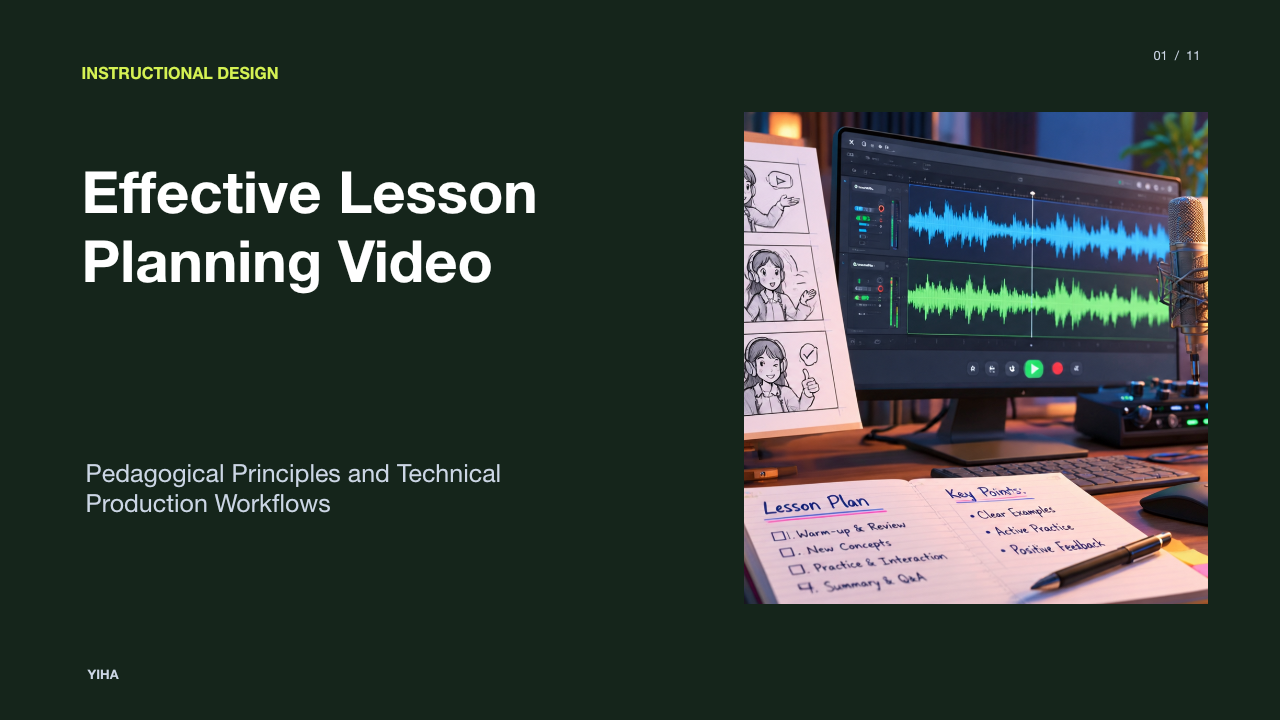
Clear recording requires deliberate pre-production. Speaking extemporaneously while presenting slides often introduces vocal fillers, uneven pacing, and unfocused conceptual drift. As noted in the study on Evidence-Based Guidelines for Recording Slide-Based Lectures, writing a script or organizing speaking prompts within slide notes enables presenters to structure and edit their thoughts before recording starts. This script subsequently serves as the baseline for post-production transcripts, closed captions, and supplementary student handouts.
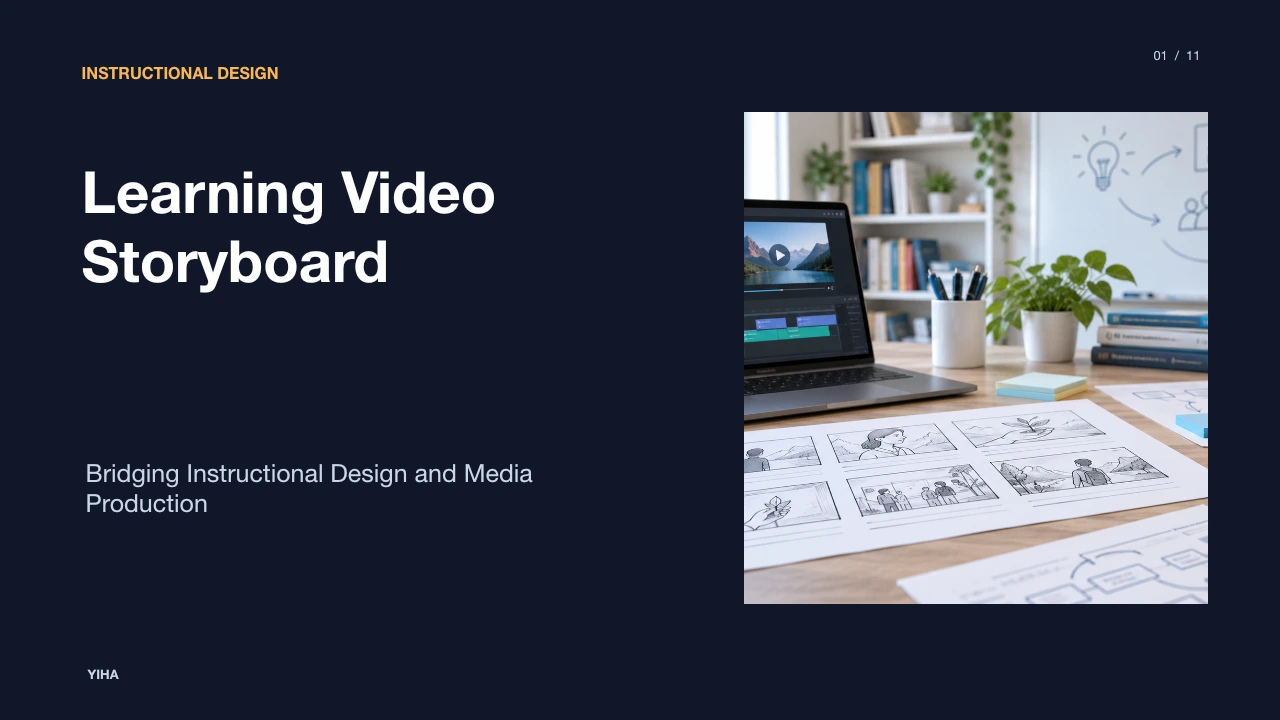
Effective pre-production also addresses modular chunking and descriptive audio integration. Breaking broad topics into discrete, focused segments, such as separating intrinsic motivation from extrinsic motivation rather than recording an undivided thirty-minute session, helps viewers navigate and review technical subjects. Additionally, planning speech to accommodate accessibility from the start reduces later production burdens. The W3C guidelines on Audio Content and Video Content recommend using integrated description. When presenters naturally speak the key data points, chart trends, and labels visible on the screen during the initial voiceover, blind and visually impaired audiences receive full context without requiring separate, dedicated descriptive audio tracks.
Audio Capture and Room Acoustic Setup
Audio clarity is the single most critical technical component of an audio video presentation. While viewers will tolerate minor visual imperfections, muffled or distorted audio drives listener fatigue and hinders comprehension. Achieving clean vocal tracks requires managing physical room acoustics before adjusting software settings. Hard surfaces like bare walls, windows, and uncarpeted floors bounce sound waves, creating unwanted room reverb.
Presenters should isolate their recording environment from external noise sources like heating and ventilation units, outdoor street noise, or office chatter, as emphasized by W3C WAI in Audio Content and Video Content. Microphone hardware and placement dictate signal quality. Built-in laptop microphones capture excessive ambient room noise and keyboard reverberations, whereas dedicated external microphones positioned close to the speaker provide a clearer, more consistent signal. Presenters must calibrate microphone gain levels so spoken volume is balanced, preventing distracting distortion or unintelligible passages. Furthermore, Web Content Accessibility Guidelines Level AAA standards require background audio, if present, to sit at least 20 decibels lower than foreground speech to protect intelligibility for people with cognitive or auditory disabilities.
Slide Design and Visual Signaling
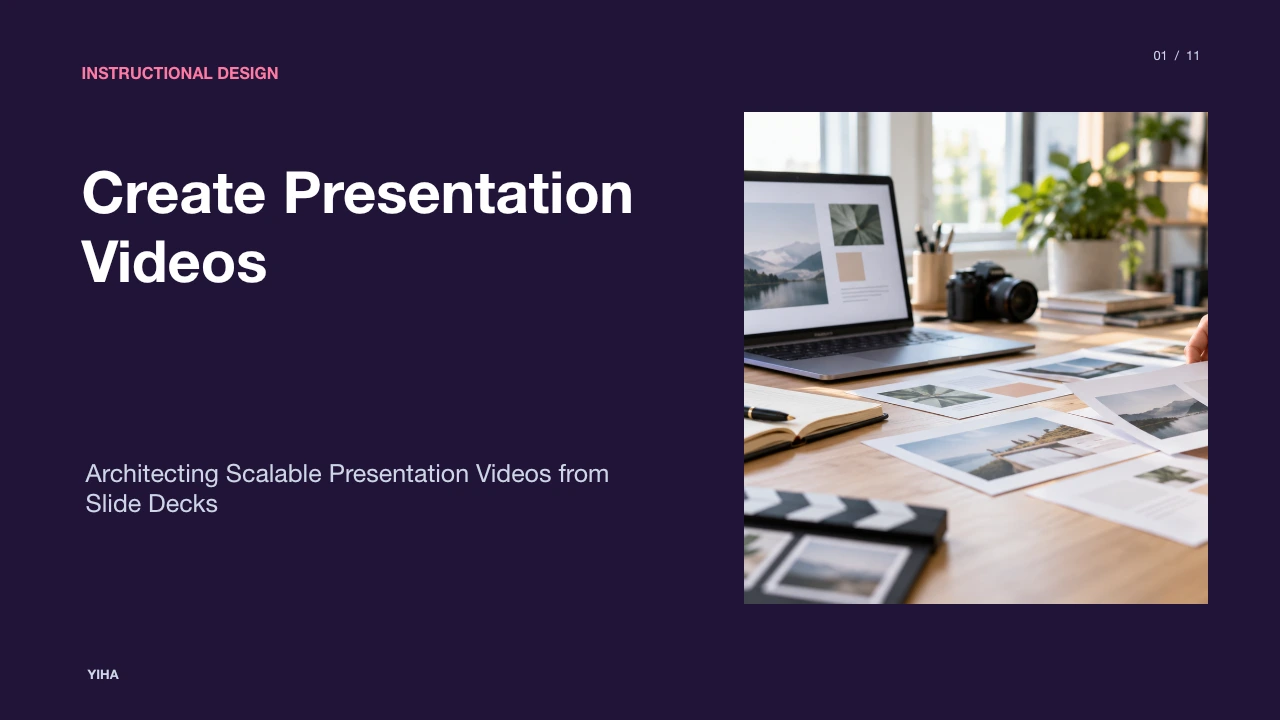
Visual presentation slides designed for video consumption require a different aesthetic structure than classroom handouts or printed reports. Because viewers watch on diverse screen sizes ranging from desktop monitors to mobile phones, visual elements must feature clear typographical hierarchy, ample negative space, and strict contrast ratios. Guidance on Planning Audio and Video Media outlines that meeting Web Content Accessibility Guidelines requires deliberate planning for visual legibility so users who have low vision can discern charts and textual cues without strain.
Employing visual signaling guides viewer attention precisely to the spoken subject. Presenters should avoid displaying an entire list of bullet points simultaneously, which prompts viewers to read ahead instead of listening. Using progressive reveals, callout boxes, and spotlighting synchronizes the visual display with vocal explanations. As documented in Evidence-Based Guidelines for Recording Slide-Based Lectures, detailed background text, mathematical proofs, or reading lists should be placed in downloadable supplemental handouts created from slide notes rather than crowded onto the screen, ensuring the visual channel reinforces core ideas without cognitive overload.
Camera Recording and Screen Capture
Recording presenter video adds a human presence that increases student engagement in pre-recorded settings. According to Evidence-Based Guidelines for Recording Slide-Based Lectures, incorporating instructor video is rarely distracting to learners and typically increases personal connection, though research demonstrates that video presence primarily enhances personal engagement rather than directly boosting retention. Consequently, presenters should determine whether to include camera feeds based on available production resources.
When camera video is recorded, production planning must prevent visual interference. As outlined in W3C guidance on Audio Content and Video Content, visual layouts must be storyboarded so presenter frames or accessibility overlays do not obstruct essential instructional text or diagrams. Presenters can practice their lectures using automated speech-to-text tools to generate preliminary transcripts and build comfort speaking directly to the camera before completing the final take.
Timeline Editing and Audio Mixing
Post-production timeline editing transforms raw footage and voiceover tracks into a coherent narrative. The editing process begins by synchronizing audio and video tracks onto a non-linear editing timeline. The first pass focuses on assembly and trimming, eliminating false starts, long awkward silences, coughing, and noticeable filler words. Maintaining a balanced conversational cadence keeps the instructional pace active without feeling rushed.
Audio mixing requires rigorous attention to channel balance and dynamic range. Spoken dialogue should be cleaned of low-frequency rumble and leveled to prevent sudden jumps in volume. If background audio or transitional music is incorporated, ducking must be applied. As specified in W3C guidance on Audio Content and Video Content, background music levels must be set at least 20 decibels lower than the spoken dialogue. This acoustic separation prevents musical accompaniment from interfering with speech recognition and guarantees that listeners with varying hearing abilities can comprehend the spoken explanation cleanly.
Captions, Transcripts, and Accessibility Standards
Accessibility is a fundamental requirement for modern digital media, not an optional afterthought. The Web Content Accessibility Guidelines establish clear requirements across Level A, Level AA, and Level AAA conformance. As documented in Making Audio and Video Media Accessible, accessible multimedia requires synchronized captions for pre-recorded speech, descriptive transcripts for non-visual learners, and thoughtful avoidance of visual barriers.
Closed captions provide a synchronized text equivalent of all spoken words and meaningful sound cues for deaf and hard-of-hearing audiences. Transcripts provide complete text access that can be digested at the user's individual pace, searched by screen readers, or translated. For video content containing complex visual demonstrations, a descriptive transcript integrates both spoken dialogue and descriptions of essential visual actions. Furthermore, as noted in W3C Planning Audio and Video Media criteria, choosing an integrated narration style during the scripting phase minimizes the need for cumbersome separate audio description files by ensuring the speaker explicitly voices visual information as it appears.
Compression, Codecs, and Export Formats
Once timeline editing is complete, the project must be encoded into an optimal digital delivery format. Uncompressed video requires immense bandwidth and storage, with raw high-definition video demanding roughly 249 megabytes per second, making efficient lossy compression essential. According to the MDN Web video codec guide, video encoders function by analyzing visual differences across successive frames, meaning that high-motion sequences demand significantly more data than stationary presentation slides.
The industry standard pairing for broad web playback is the MP4 container format utilizing the AVC (H.264) video codec combined with AAC audio compression. MDN documentation on Media container formats (file types) notes that the MP4 container format is widely supported across virtually every modern web browser and operating system. Alternatively, open-standard workflows can adopt the WebM container pairing the VP9 or AV1 video codec with the Opus audio codec. MDN documentation also notes that reducing dimensions prior to encoding, such as downscaling high-definition source video to 720p, can significantly decrease file size while maintaining high visual quality.
Video Hosting, Players, and Playback Delivery
Deploying the finalized presentation requires selecting an appropriate delivery architecture and player implementation. MDN container documentation in Media container formats (file types) notes that providing media through multiple source formats inside HTML5 player elements ensures compatibility across older and modern devices alike. Dedicated streaming platforms provide adaptive bitrate delivery, adjusting playback resolution dynamically based on each viewer's real-time network connection.
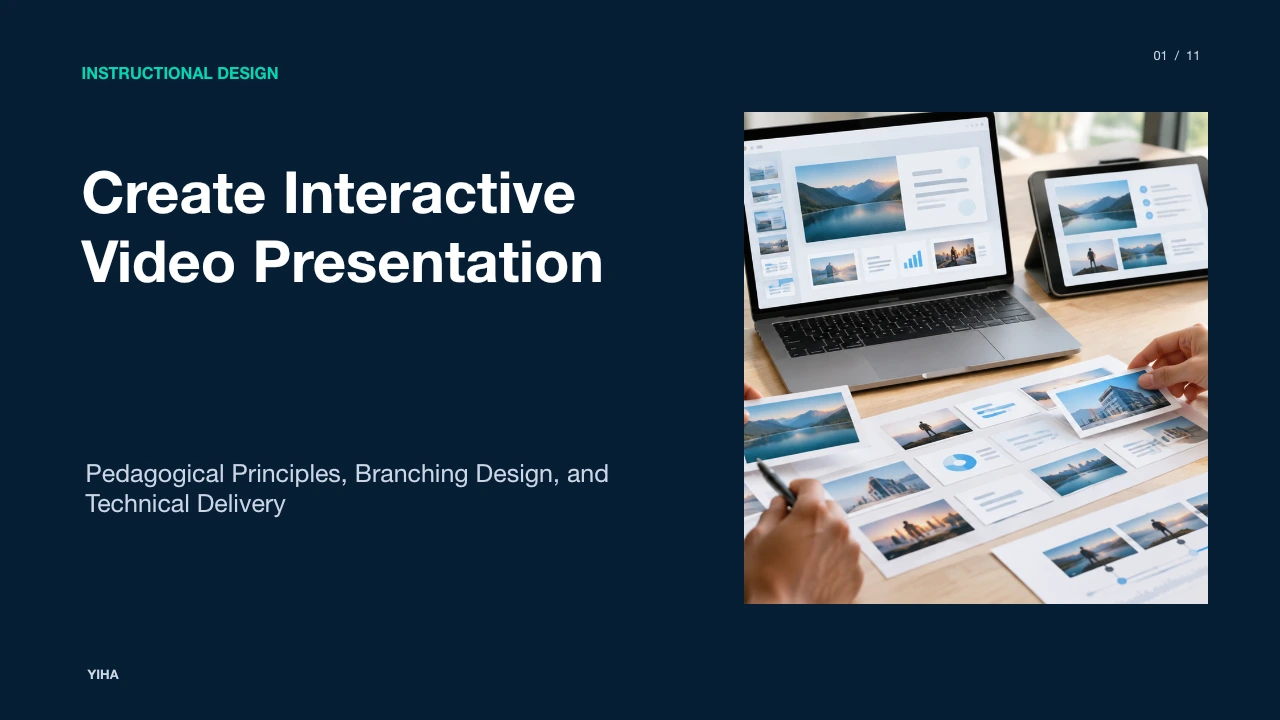
The playback interface must adhere to accessibility and usability standards. The W3C WAI resources on Planning Audio and Video Media emphasize selecting or implementing an accessible media player. Compliant media players support full keyboard navigation, provide distinct volume and closed-caption toggles, display interactive transcripts, and accommodate variable playback speeds without pitch distortion. Furthermore, incorporating chapter markers and outlines mapped to specific topics empowers learners to review complex slides efficiently, transforming a static video into a structured, responsive instructional resource.
Research sources
- Evidence-Based Guidelines for Recording Slide-Based Lectures - PMC · pmc.ncbi.nlm.nih.gov:443
- Planning Audio and Video Media | Web Accessibility Initiative (WAI) | W3C · www.w3.org
- Audio Content and Video Content | Web Accessibility Initiative (WAI) | W3C · www.w3.org
- Making Audio and Video Media Accessible | Web Accessibility Initiative (WAI) | W3C · www.w3.org
- Web video codec guide - Media | MDN · developer.mozilla.org
- Media container formats (file types) - Media | MDN · developer.mozilla.org